The fastest start is Run setup on the dashboard. It builds the categories, the channels, a team and a first panel for you.
1. Turn on Tickets
Open the dashboard, choose the server and turn on the Tickets switch on the Services page.
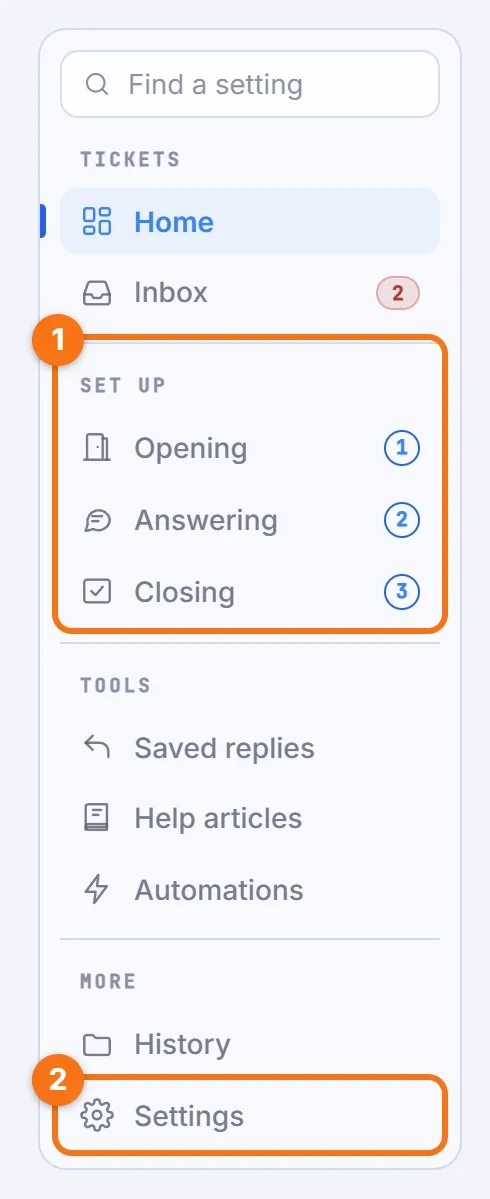
The Tickets menu
Once it is on, Tickets has a menu of its own:
- Home and Inbox.
- The three steps of a ticket under "Set up": 1 Opening, 2 Answering and 3 Closing.
- The tools: Saved replies, Help articles and Automations.
- History and Settings.
"Find a setting", on top of that menu, searches every Tickets setting and takes you to it.
While Tickets is off
Every ticket command and every panel button answers "The Tickets service is switched off in this server." If you have Manage Server, a button under that answer switches Tickets on.
2. Run setup
While the server has no panel, Home shows a "Run setup" button. It opens the Setup page, whose "Run setup" uses what the server already has and makes what is missing, in one go. Then continue at step 7, or skip setup and build things yourself from step 3.
What setup makes
- Ticket categories: a category named Support Tickets, Tickets or Open Tickets for new tickets and one named Closed Tickets or Archived Tickets for closed ones. Otherwise it makes "Support Tickets" and "Closed Tickets", hidden from @everyone.
- A channel to open tickets from: a text channel with open-a-ticket or create-ticket in its name, else a new #open-a-ticket. Either way @everyone can read that channel but not type in it. When the Setup page finds such a channel, or one named support, it asks first: "Use #name" or "Make a new channel". For a channel named only support, the choice starts on "Make a new channel".
- A log channel: the one you already set, else a channel with ticket-log or support-log in its name, else a new #ticket-logs. When there is such a channel, the Setup page asks whether to use it or make a new one. A new #ticket-logs is hidden from @everyone and only lets the bot in, so give your staff access to it in Discord.
- A team, when the server has none: "Support Staff". It is built from roles whose names contain mod, admin, staff, moderator, support or helper and that hold kick, ban, manage messages or manage server.
- A first panel, when the server has none: "General Support" (title "Need Help?", button "Open Ticket"). Setup then posts the panel in the channel to open tickets from.
What setup needs and running it again
The bot needs the Manage Channels permission. Without it, setup stops before it changes anything.
"Run setup again" keeps your panels and teams and makes a deleted category or channel again. It also posts your first panel (A to Z by name) again as a new message, so delete the older message in Discord.
3. Optional: Build a panel yourself
A panel is the message members click. On 1 Opening, click "New panel", give it a "Name" and pick what to "Start from": "Blank", "Support" or "Applications".
What the panel editor holds
The panel's editor then opens, in these sections:
- "The message": the title, the text and the colour members see, plus an image, a thumbnail, a footer and an author if you want them.
- "Buttons": up to 25. Each has a label, an emoji and a colour. Each can send tickets to its own team, ask its own questions and open in its own place. "Members pick from" there turns the buttons into "A menu", one dropdown list on the panel message.
- "Dropdown menu": options members pick from after a click, up to 10 levels deep.
- "Where tickets open": each ticket opens as a "Private channel" in a category you pick, a "Private thread" under a channel you pick or an "Application". An application opens no channel at all: staff accept or reject the answers in a review channel. The same section names each ticket (default "ticket-{number}") and titles it. Its "Closed tickets and pinning" part sets where closed tickets go, their name and "Pin the first message when a ticket opens".
- "Who answers by default": the team, the questions asked first and the response target.
The panel's rules and its other settings
Under the editor come the panel's own rules:
- "Who can open tickets, and what they can do": who may open tickets from the panel or from one button. It also sets what the member and staff may do in a ticket, whether the member can still read a closed ticket and the roles that can read every ticket.
- "When this panel takes tickets".
- "The first message in a new ticket".
- "Help articles before the ticket opens".
"Advanced" holds the review channel and replies for applications, the panel's limits, the default button, "Name, short name and note", "Copy this panel" and "Delete this panel".
The rest of a panel's settings sit on the other pages:
- Pick the panel under "Settings for" on 2 Answering: "Taking a ticket", "Staff thread" and, under Advanced, "Roles as a ticket moves" and "Passing a ticket on".
- On 3 Closing: "Who can close", "Ask for a reason to close" and "Keep a copy of the conversation".
- On Settings: "This panel's log channel".
4. Create a team
On 2 Answering, the "Who answers" card lists your teams, and its "New team" button opens the Teams page. Give the team a name and add people by user ID or pick a role. Then pick the team on the panel.
Pings, hand-out and who sees tickets
Team members get access to every ticket channel opened for their team. They count as staff for claim, close, note and the other staff commands.
- Pick a "Ping role" if the team should be pinged on new tickets.
- Pick the team on the panel under "Who answers by default" on 1 Opening. A button or a menu option can send its tickets to another team.
- "How new tickets are handed out" stays "By hand" until you pick "In turn" or "Fewest first". Those two claim each new ticket for one member of the team.
Without a team, a new ticket is opened to the roles with Manage Server, unless its button or menu option routes it to a role. That way tickets are never invisible to staff.
5. Post the panel
On 1 Opening, pick the panel. The bar on top of its editor says "Not in Discord yet": pick a channel and press "Post in Discord".
Permissions and later changes
The channel needs Send Messages and Embed Links for the bot. From then on the bar says whether members see your latest changes. Button changes reach Discord by themselves, while text and look changes wait for "Update in Discord".
Post it from Discord instead
- /tickets panel opens a private builder. Make a panel, change its text, its buttons, its team and where its tickets open, then press "Post in Discord" and pick a text or announcement channel.
- Run with a panel and a channel, /tickets panel posts that panel straight away. The bot first checks that it has View Channel, Send Messages and Embed Links there.
- /tickets setup creates a "🎫 <panel name>" category and a "<panel slug>-tickets" channel where members can view but not type, then posts the panel there.
- /tickets setup needs Manage Server. /tickets panel needs Manage Server or the manager role on the dashboard's Access page.
Optional: let members open tickets by DM
Members can also reach your team without clicking a panel, by writing to the bot in a direct message. That is Tickets by DM, and it is off until you turn it on.
To turn it on, open the "Every panel" view of 1 Opening and find the "Tickets by DM" card. Switch on "Members can open a ticket by writing to the bot" and pick a panel under "A ticket by DM opens under". Only managers can save the card.
- The panel has to be on and open a private channel or a private thread.
- A panel that opens tickets as threads also needs a channel for the threads, and a panel that takes applications cannot be picked.
- The panel does not have to be posted in Discord.
- A ticket by DM uses that panel's team, category, limits and hours. It skips the panel's questions and its dropdown menu.
"What staff write in the ticket" decides how your team answers:
- "Goes to the member" (the default) sends every message your team types in the ticket to the member by DM.
- "Stays with staff" sends only replies made with /ticket respond or from the dashboard.
If that panel is turned off or deleted later, members can no longer open a ticket by DM. The dashboard and the /tickets panel builder tell you so right away, and the card says it until you turn the panel on again or pick another.
On a server with a custom bot, members write to that bot, not to the shared YourBot.
Optional: start from the Modmail template
The Modmail template does these steps for you. On Settings, under "Load a setup", find it under "Templates" and press "Use this template". It adds a panel called Modmail with a Contact mods button that opens a private channel, a Moderators team and one saved reply. It also turns Tickets by DM on under that panel, with "Goes to the member".
The review screen says "Tickets by DM: on" before anything is saved, and "Load this setup" saves it. The panel is not posted and the team has no members yet. Add your moderators to the team: until you do, its tickets open to the roles with Manage Server. Post the panel when you want the button in a channel.
On a server that already made its own choice on the card, the template adds the rest. It leaves that choice alone: "Tickets by DM was not loaded: this server already has its own choice."
6. Set the log channel
On the Settings page, pick a staff-only channel under "Post the log in" in the "Logs" card.
What the log channel gets
By default the bot posts there when a ticket closes. It posts the transcript card, with the transcript as a web page file and a "View transcript" button, plus the files kept from the ticket.
"What gets logged" in the same card switches 17 events on or off, in two groups:
| Group | Events |
|---|---|
| "Ticket changes" | Ticket opened, Ticket claimed or assigned, Ticket unclaimed, Close requested, Ticket closed, Ticket reopened, Ticket renamed, Moved to another team, Ticket escalated, Member left the server, Ticket deleted and Transcript saved |
| "Team work and ratings" | Priority changed, Someone added or removed, Staff note added, Rating received and Response target missed |
Only Ticket closed and Transcript saved are on by default. Event posts never ping anyone.
To give one panel a log channel of its own, pick it under "Settings for" on the same page ("This panel's log channel"). To send transcript cards and files to a channel of their own, use "Post transcripts in" under "Transcripts" on 3 Closing. Without any log channel, transcripts still reach History on the dashboard, but staff get no Discord post.
Other everyday choices on the three steps
- 1 Opening, "Rules for every panel": how many tickets each member can have open (1 unless you change it) and open in a day.
- 2 Answering, "Keep the member posted": the DMs "When their ticket opens", "When staff claim it in Discord" and "When staff reply and the ticket waits on them". All three are off until you turn them on.
- 3 Closing: "Who can close a ticket" ("Staff and the member" unless you pick "Staff only") and "Staff must claim a ticket before closing it". Under "After it closes" you choose whether a closed ticket's channel is kept or deleted.
A ticket by DM never sends the first and the third of those DMs: the member already has the bot's receipt, and each answer reaches them by DM itself.
7. Open a first ticket yourself
Click one of the panel's buttons or pick from its menu. Members can also run /ticket new in any channel.
What the bot checks before a ticket opens
First the bot applies the rules under "Who can open tickets from this panel". Members with Manage Server always pass them.
Then it checks, in order: the blocked list, the opening hours, the panel's wait between tickets, the panel's limit of open tickets, the panel's own limit for each member, the daily limit and your open ticket limit.
- A block lasts until someone lifts it. One given a number of days under "For how long" ends by itself.
- Members with Manage Server and the "Roles that can open tickets at any time" skip the hours check.
- The "Roles that skip these limits" skip the wait and the limits.
- Outside the hours, the choice under "Outside these hours" decides. Either no ticket opens and the member sees the closed message, or the ticket opens with a "🕒 Outside support hours" notice saying when the team is back.
What you see when it opens
If the click leads to the panel's dropdown menu, a private picker asks "Select a category to open your ticket:". If the ticket has questions, they open in a Discord pop-up, 5 to a page. Between pages a private message such as "✅ Page 1 of 2 done. Click Continue for the next questions." carries a Continue button.
On a panel that opens private channels, the ticket's channel is then created, hidden from @everyone. It is visible to you, the bot, the team, a role the button or menu option adds and the roles under "Who else can read every ticket". The bot posts a message that mentions you, with the ticket card and its Claim, Close and Note buttons.
Up to 3 matching help articles may follow, because "Suggest help articles when a ticket opens" on 1 Opening is on by default. When the panel has "Give each new ticket a private staff thread" on (2 Answering), the bot also opens a private staff thread inside the channel. The member who opened the ticket is never added to it.
You get a private confirmation, "✅ Your ticket has been created! Head to #channel". It disappears after 5 seconds, because "Remove them once the ticket opens" (1 Opening, Advanced, "Clean up the question messages") is on by default.
Try Tickets by DM
With Tickets by DM on, try that way in too: write to the bot in a direct message. Nothing is sent yet.
- The bot answers once, with a question and two buttons, Send and Cancel: "Send this to the <server> team? They will answer you here." When you share several servers that take tickets by DM, it first asks "Which server is this for?". When the panel has several buttons you may use, the menu "What is it about?" takes the place of Send, and a pick from it sends.
- What you write while the question is open is kept, up to 10 messages for 30 minutes. It goes into the ticket in order when you send. Cancel throws it away.
- Send runs the same rules and checks as a click on the panel. A refusal shows above the question in the same words, and you can try again.
- The ticket then opens for your team only. You are not added to its channel or thread and no help articles are suggested there.
- The question turns into a receipt: "Sent to the <server> team (ticket #<number>). Write here to add more. Their answers arrive here." Each message that went in gets a ✅.
From then on, everything you write to the bot goes straight into that ticket until it closes. That holds while it is your only open ticket by DM, you are still in its server and no other server you share with the bot takes tickets by DM.
Otherwise the bot does not guess where a message belongs. It asks "Which conversation is this for?" and keeps what you write until you answer, as it does for the first question. Its menu lists your open tickets first, each as "<server>, ticket #<number>", then every other server that takes your DMs as "<server>: a new ticket".
- Pick a ticket and what you wrote goes into it.
- Pick a new ticket and the same message becomes that server's question, as for a first message. Your open ticket is not touched.
The bot remembers your answer for 15 minutes after your last message that went into that ticket. While you have two conversations open, an answer from the other team makes it ask again before your next message goes anywhere. If you use Discord's Reply on one of the team's answers, your message goes into that answer's ticket without a question. A ticket on a server you have left takes no more of your messages and does not stand in the way of a new one.
If the bot does not answer your first message at all, no server you share with it takes tickets by DM. Check that the card is on, that its panel is on and that you wrote to the bot that runs this server. The bot keeps quiet there on purpose. Only someone who had a ticket by DM before is told, at most once a day: "I can't pass this on: no server we share takes tickets by DM. Open a ticket in the server instead."
8. Work the ticket as staff
Claim it with the Claim button or /ticket claim, then reply in the channel. Add private notes with /ticket note. Close it with the Close button or /ticket close.
Working tickets on the dashboard
The Inbox lists every ticket under "Needs a reply", "Mine", "All open" and "Closed". A ticket's own page shows the conversation. There managers can reply, pick one of the "Saved replies", "Send as the team" and add a "Staff note". They can also claim the ticket, set its priority, hand it to a team, rename it, move it to another panel and close it.
Closing rules and other commands
The close form takes an optional reason. The reason is required when the ticket's panel has "Ask for a reason to close" on.
When "Staff must claim a ticket before closing it" is on, staff need the ticket claimed first. The member who opened it never does.
- /ticket add brings in another member or a role.
- /ticket transfer hands the ticket to another team.
- /ticket escalate moves it to another panel.
Working a ticket by DM
A ticket by DM is worked the same way, with one difference: the member is not in its channel or thread.
What your team sees in the ticket:
- Its first post is a card for your team. It starts "📨 Opened by DM by <member>."
- The card also says when the account was created, when the member joined the server and how many tickets they opened here before.
- The member's messages follow as posts by the bot. Each message starts with the member's name in bold. One that is too long for a single post goes on in more posts, which do not repeat the name.
- Their files come with the message, on its last post. Up to 10 files come along, each up to 8 MB and 24 MB together. A file past that is not attached: the post gives its name, its size and a link to it.
With "Goes to the member", every message a person types in the ticket is sent to the member by DM. Its first line names who wrote it and the server. While "Start replies as the team" is on it names the team instead of the writer. Files are attached again. A file over 8 MB goes as a link.
A ✅ on your message means it arrived. A ⚠️ means it did not. The bot's reply under the first message that failed says why, for example "Not delivered: <member> does not accept DMs from this server. They can still read this ticket and its answers on their My tickets page: <link>".
The marks are reactions, so the bot needs the Add Reactions permission. A panel that opens private channels needs it for the whole server. A panel that opens threads needs it and Read Message History in the channel its threads open in. Without it the answers still arrive. The bot says once in the ticket that it cannot add the marks, and from then on it says there every time a message does not arrive. The Setup check on the dashboard's Bot Settings page lists the permission while Tickets by DM is on.
With either choice the member also gets by DM every reply made with /ticket respond or from the dashboard. What an automation posts for them goes by DM too: "Post a message" and "Post a canned response" of a rule that runs on one of these:
- "No staff reply after the member writes or the ticket opens"
- "No reply from the member after staff write"
- "Time after the ticket opens"
Such a post goes out under the team's name, or the server's when the ticket has no team. It gets the same ✅ or ⚠️. With "Stays with staff" these are the only answers that reach the member. What a person types stays in the ticket, and the bot says so under the first message typed in each ticket.
Never sent to the member:
- notes made with /ticket note
- the staff thread
- what "Ping the ticket's team" posts
- what a rule posts when "The member who opened it leaves the server"
- anything else a bot posts in the ticket
Editing a message changes the member's copy when it went out as one DM and the new text still fits in one. Otherwise the copy stays as it was and the bot says so under the message. Deleting a message removes its copy. Messages deleted several at a time, as a clean-up bot does, are not followed. Reactions and typing are not carried.
While the ticket is open, a member's own edit or delete of a message the bot carried follows a choice on the Tickets by DM card. Under "When the member edits or deletes a message they sent", pick one:
- "Update the staff copy" (the default)
- "Keep the old text and add a note"
- "Leave the staff copy as it is"
On the dashboard such a ticket has a "By DM" chip in the Inbox and on its page. Its reply box says "Goes to <member> by DM".
9. Find the results
Open the History page. Every saved transcript is there, newest first and 50 a page, each with "Preview", "Open" and downloads as HTML or text. History's "Insights" tab has the volumes, the reply times, the ratings and the comments members left.
After a ticket closes
- The closed ticket's first message shows a Reopen button, plus 🗑️ Delete and 📜 Transcript buttons for staff.
- Every close posts the same transcript card to the log channel when one is set. That holds whether the close came from Discord, the dashboard, a close request or an automation.
- The member receives a DM asking for a rating from 1 to 5 stars. None goes out when "Ask members to rate their support" (under "Rating" on 3 Closing) is off or the member ran /ticket dms off.
- When the server deletes closed ticket channels, the channel goes once the ticket has a saved transcript. Open tickets are worked from the Inbox.
Members find their own tickets with /ticket mine and on the "My tickets" page of the website (/my/tickets). There a closed ticket shows the conversation as they saw it.
Results of a ticket by DM
The member of a ticket by DM cannot see its channel, so every close sends them one close message by DM. It is the rating request when one goes out, otherwise a short close notice, whatever "Send a close notice while ratings are off" and /ticket dms off say.
A ticket that closes because someone deleted its channel by hand sends a shorter one: it says the ticket was closed and asks for no rating. A ticket thread that someone deletes by hand is treated the same way: its ticket closes and the member gets the same shorter message.
While the server still takes tickets by DM and the member is still in it, the close message ends with "Write here again to open a new ticket."
On "My tickets" a ticket by DM shows the conversation while it is still open too, so a member whose DMs are closed can read the answers there. It shows the conversation only: their own messages and the replies sent to them, never notes, the card for your team or what staff wrote among themselves.
Insights also says how many tickets came in by DM. They are not clicks on a button, so the table of buttons leaves them out.