Setup takes a few minutes. It creates the log channels and the quarantine role for you.
1. Turn on Sentinel
On the dashboard, open your server's Services page and switch on the Sentinel Moderation card.
What turning it on does
Until it is on, every moderation command answers "The Sentinel Moderation service is switched off in this server." and the automod does nothing. If you have Manage Server, a button under that answer switches Sentinel on too.
The first time a server turns it on, Sentinel also switches on anti-nuke with quarantine, restore and the hold. Before anyone tidies up channels or roles in bulk, list the admins you trust as exempt on the Anti-nuke page.
2. Open Sentinel and start setup
Open Sentinel. On Home, click Run setup.
Where to find it and who can run it
Until it is set up, Home says "Sentinel is not set up yet" with a Run setup button. Later, the Setup card on the Settings page has "Run setup again".
Only dashboard managers of the server can run it. The Setup page tells anyone else that the Manage Server permission is needed.
The "What setup does" list on that page is the plan for the run.
3. Wait for the Readiness check
Wait for the Readiness check to say "Ready to run setup." If a permission is marked No, give it to the bot first.
What the check looks at
The check confirms these three lines:
- "The bot is in this server"
- "It can create the log channels (Manage Channels)"
- "It can create the Quarantined role (Manage Roles)"
Then it says "Ready to run setup." Grant the bot any permission marked No before you continue, or the run stops at that step.
4. Choose how strict
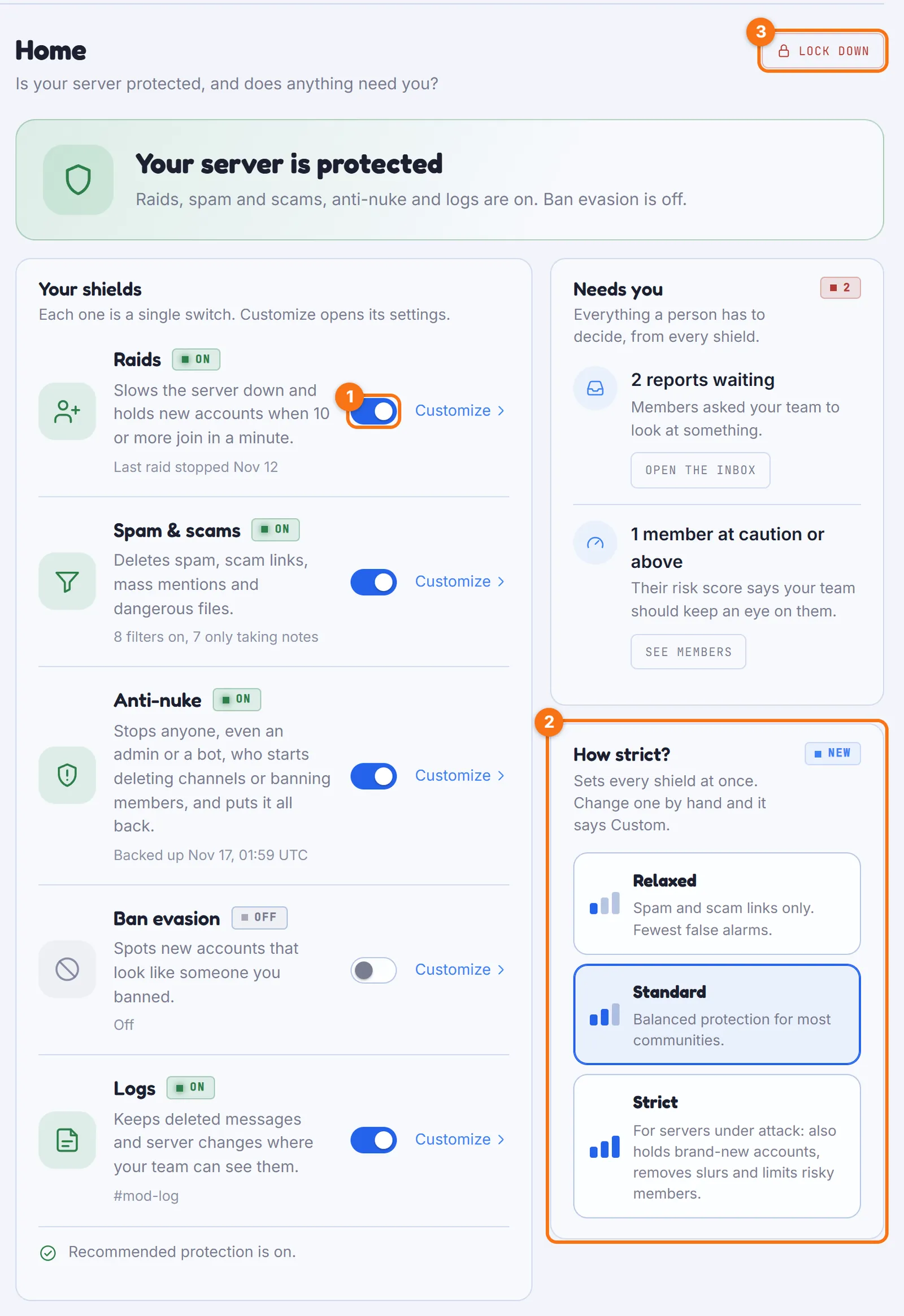
Pick Relaxed, Standard or Strict. Leave "Act right away" off.
What each level does
- Relaxed: spam and known scam links.
- Standard: preselected, balanced protection for most communities.
- Strict: for servers that get raided or targeted.
With "Act right away" off, the new filters start in Testing. The bot notes in the mod log what each filter would have done, without touching anyone, so you can check them before they act. Home's How strict dial can switch the level later.
Describe your server instead (AI draft)
If the Setup page also shows "Or describe your server", you can describe your community and how strict you want moderation instead of picking a level. Preview the filters drafted for you, then apply them.
This AI draft uses AI credits from your account. Each draft is charged at its actual cost, up to the amount the card shows. Nothing is charged when a draft fails or has nothing Sentinel can apply.
5. Run setup
Click Run setup and confirm.
What setup does
In order, setup:
- checks what already exists;
- reuses a category with "mod" in its name or creates a private "Moderation" category;
- creates #sentinel-logs and makes it the moderation log channel;
- creates a "Quarantined" role with no permissions and denies it sending messages, reacting and using threads in every text, announcement and forum channel;
- detects moderator roles (roles named with mod, admin, staff or moderator that hold Kick Members, Ban Members or Manage Messages);
- saves those settings;
- creates #message-log and #server-log, points the message log and the server logs at them and turns them on;
- turns on the recommended protection (anti-nuke with quarantine, restore and the hold, the bot-add rule, escalating timeouts and the message log);
- adds the filter packs of your level;
- posts a "Sentinel Moderation Active" card in #sentinel-logs.
6. Read the result page
Under What happened, every step shows Done, Skipped or Failed with its reason.
If a step failed
An error is almost always a missing bot permission. Give the bot that permission and run setup again. Steps that succeeded are not repeated, and channels or roles that already exist are reused.
7. Check your team in Settings
Open Settings and check Your team. If setup found no moderator roles, add them here: until you do, only Administrators can run the staff commands.
Other settings to confirm
Confirm the mod log channel and the quarantine role.
Under Moderator commands:
- set a default timeout if you want /timeout to work with the duration left empty;
- decide whether to hide which moderator acted;
- decide whether to ask before bans, kicks and timeouts.
8. Test it
Run /warn on a test account with a reason, then run /history on the same account.
What you should see
- You see "Warning issued to @member. Case #1".
- The test account receives the warn DM.
- A "Warning Issued" card appears in #sentinel-logs.
- /history shows the case and the warning count.
9. Confirm on the dashboard and switch filters on
History lists case #1 under Cases, and Home shows your shields with Lock down at the top. Once the filters have run in Testing for a while and their notes look right, open Spam & scams and switch it from Testing to On. Every filter then acts.
Keep one filter in Testing
To keep one filter testing, open it after you switch to On and turn on "Test this filter on its own". Switching Spam & scams to On turns that off too.
If something does not work, see Troubleshooting.