Group Finder lets members post a group they are recruiting for, join with one click and get told when a matching group appears. A server owner or a member with Manage Server can do every step below.
1. Check the bot can create channels
Give the bot Manage Channels in the server, so the setup wizard can create its channels. To use channels you already have instead, skip to step 4.
What the wizard needs
The wizard creates a category, a text channel and a forum channel. Without Manage Channels it stops before changing anything and asks you to grant the permission.
2. Turn on Group Finder
Open the dashboard, choose the server, open Services and switch Group Finder on. The wizard in step 3 also switches it on, so you can skip this step.
3. Run the wizard
In Discord, type /group setup. Or, on the dashboard, open Group Finder from Services and click Set it up for me on Home.
What the wizard creates
- A Group Finder category.
- #lfg-listings, where everyone reads and only the bot posts. The wizard posts a welcome card there.
- #lfg-forum, with a tag for each game your channel and role names mention, plus Raid, Dungeon, PvP, Social, Arena, Fresh, Prog, Farm, Learning and Chill.
The wizard also sets the channel permissions, saves both channels, makes every new group open its own thread in the forum and creates starter templates. Rerunning it reuses channels and templates that already exist.
Where else to run it, and failed steps
- While nothing is set up, Home says so, and Set it up for me asks you first, then runs the wizard.
- The same wizard is under Setup and health at the bottom of Settings, as Set up Group Finder.
- The final card in Discord lists each step with a check mark or a cross. A cross means that step failed, so read the lines rather than the title.
4. Optional: choose the channels by hand
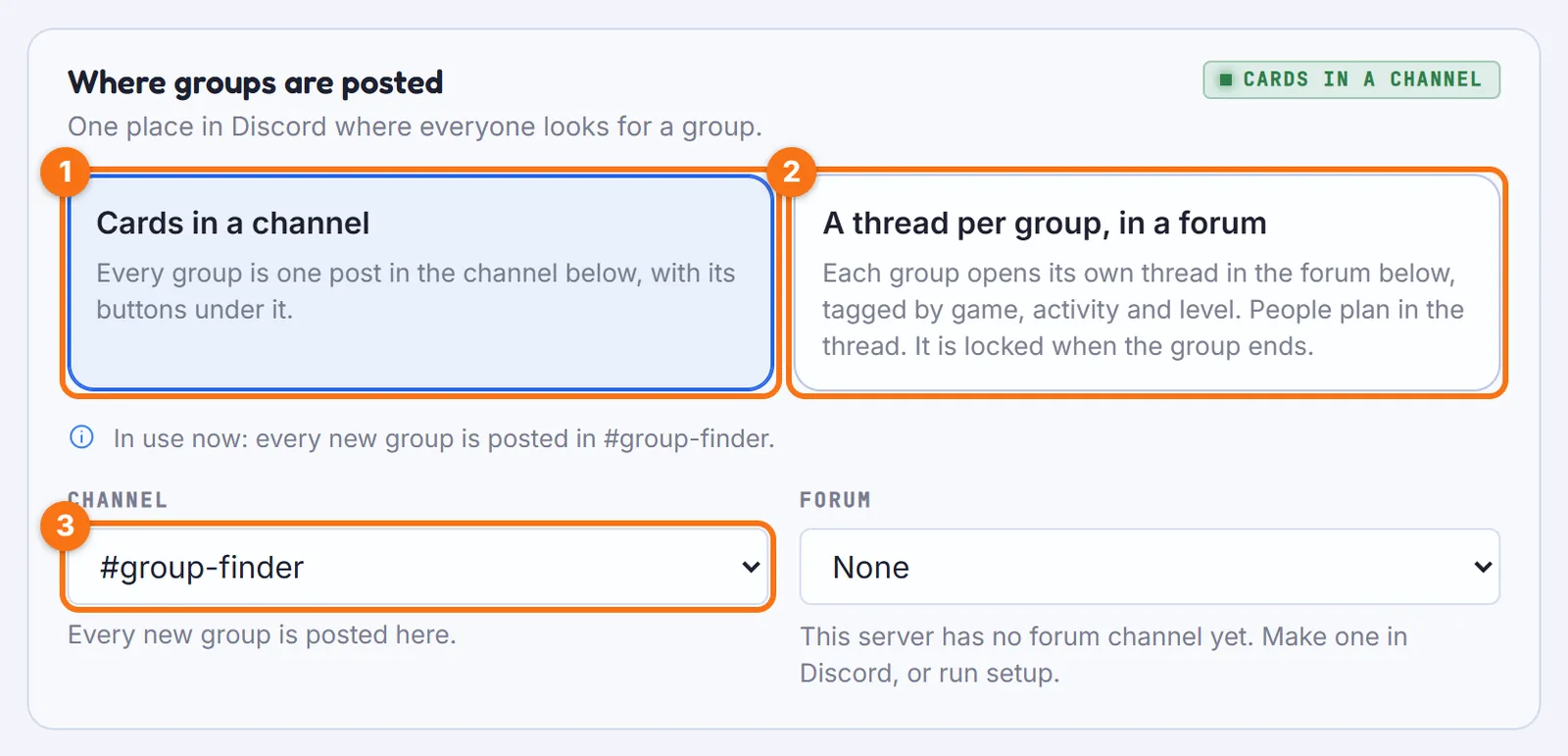
On the dashboard, open Services, Group Finder, Settings. Under Where groups are posted, pick Cards in a channel and a Channel, or A thread per group, in a forum and a Forum.
Posting with no channel, and the defaults
Where groups are posted is the only setting that matters for posting. With no channel set:
- the first
/group createadopts the channel it was typed in - a group made with New group on the dashboard is not posted in Discord
The other settings start with these defaults:
- 3 open groups per member
- groups open 4 hours by default and 48 at most
- 60 seconds between two groups
- no minimum account age
- no blocked words
- anyone can join
- a chat for every group
5. Optional: decide who gets told
On the same page, under Who gets told, pick a Channel for alert mentions and a Channel for reports. Turn on Ping this role on every new group and Game pings if you want them.
What each one does
- Channel for alert mentions is needed only if members choose to be mentioned in a channel for their alerts. Without it those alerts are not sent, and
/group-alerts addsays so. - Channel for reports gets a line each time a member reports a group.
- Ping this role on every new group makes each new post mention that role, at most once every 10 minutes.
- Game pings DM members who lately joined a group for the same game.
6. Post the first group
In any channel, run /group quick dungeon or /group create title:Test run. Or use New group on the dashboard. Then look for the card.
The reply and the card
The reply in Discord is **{title}** is live!, or posted to #channel when the card went elsewhere.
The card shows the title with how many players are wanted, the leader, the group size and the time left. It has Join, Leave, Watch, Ready Check and Done buttons.
With a thread per group, the card is the first post of a new thread in #lfg-forum. Every group also has its own page on the web, with who is in and the group chat.
7. Test it with a second member
Have a second member press Join on the card. The card updates with their name. Then press Done on the card or run /group close to end the group.
Other ways to join, and what ending does
- A member can also run
/group joinand pick the group, or join from the group's page. /group browseand Find a group list the group.- When the group ends, the card switches to closed and the chat turns read-only. With a thread per group, the thread is locked and archived.
8. Check the summary
Run /group-admin settings to see the channels and limits the bot is using.
Reading the summary, the dashboard check and templates
A channel shown as a dash is not set.
Setup and health on Settings checks the same things on the dashboard, with a link to fix each one.
/group-admin templates lists the templates members can pick in /group create, including the starter ones the wizard made.
9. Decide who can run what
Open Services, Group Finder, Commands in the dashboard. By default Discord hides the /group-admin commands from members without Manage Server.
If you use the Balanced or Locked down preset
/group noshow, /group approve, /group deny and /group report sit in the moderation category. Applying the Balanced or Locked down preset therefore limits them to your moderator roles, even though members and leaders use them. Give them a rule of their own if you want everyone to keep them.
What members see on the dashboard
Members with the Viewer role see Home, Find a group, My groups and New group. The other pages are for managers.
If something does not work, see Troubleshooting.