Updated July 2026
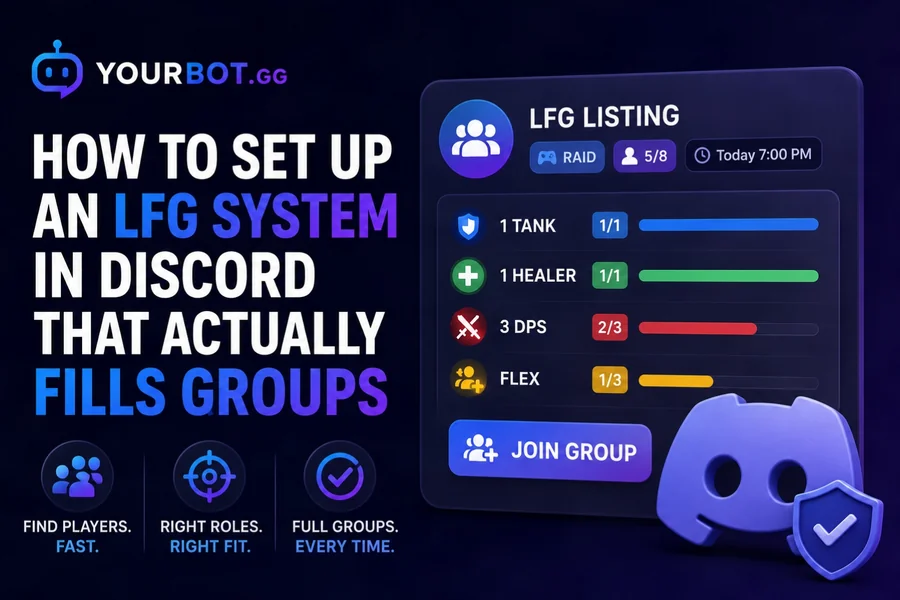
A good Discord LFG system uses structured listings, clear party slots, one-click joining, automatic expiration, and a dedicated place for each group to coordinate. A single #lfg chat may work for a small server, but active communities quickly run into buried posts, unclear availability, and groups that still look open after the run ends.
YourBot Group Finder replaces that uncertainty with reusable templates, role-based slots, one-click Join actions, saved alerts, listing moderation, and optional cross-server discovery—all as a built-in service on one modular Discord bot.
Editorial disclosure: This guide is published by YourBot.gg. It explains general LFG design principles and shows how YourBot Group Finder can implement them.
What Does LFG Mean on Discord?
LFG means looking for group. Players use LFG to find teammates for a dungeon, raid, ranked match, co-op mission, tabletop session, scrim, or another shared activity.
A useful listing should immediately show:
- Game and activity
- Start time and time zone
- Region, platform, or game server
- Party size and open positions
- Required roles
- Difficulty or play style
- How members join the group
- Whether the listing stays local or uses cross-server discovery
- Expiration time
The less members must clarify in chat, the faster suitable groups form.
Three Ways to Run LFG in Discord
| Setup | Best for | Strength | Main limitation |
|---|---|---|---|
| One text channel | Small, quiet servers | Fast and simple | Posts scroll away and status becomes unclear |
| Discord Forum channel | Organized manual LFG | Searchable posts, tags, and separate discussions | Members update capacity and status manually |
| LFG bot or Group Finder | Active gaming communities | Live slots, buttons, templates, alerts, and expiration | Requires a third-party app |
Discord Forum channels can organize manual posts because each activity receives its own discussion and tags can be required. They are currently available to Community-enabled servers, as explained in Discord’s Forum Channels FAQ.
A structured bot becomes more useful when members need accurate role slots, saved alerts, automatic expiration, or cross-server reach.
Step 1: Define the LFG Workflow
Decide how the system should behave before creating channels.
Define the games and activities, common party sizes, required roles, joining method, listing duration, and visibility. Also decide who can remove listings or suspend abusive organizers.
Keep pickup groups and scheduled events separate. Group Finder is best for assembling players around an activity, particularly near-term or on-demand runs. An event system is better for fixed dates, reminders, recurring schedules, and planned attendance. YourBot provides Beacon Events for that second use case.
Step 2: Create a Clear Channel Structure
A practical structure is:
LFG
├── #lfg-start-here
├── #lfg-listings
├── #lfg-chat
└── LFG voice channels
Use #lfg-start-here for rules, instructions, and examples. Keep #lfg-listings focused on active groups. An optional #lfg-chat gives members somewhere to ask questions without burying the board.
For manual Forums, create only the tags members genuinely filter by, such as game mode, region, platform, or difficulty.
Set permissions at the category level where possible. Discord notes that channel permissions override server permissions and synchronized channels inherit category changes. Its permissions guide explains the hierarchy.
YourBot Group Finder currently needs Send Messages and Embed Links in the listing channel. It does not need Administrator permission solely to post LFG listings.
Step 3: Build Reusable Templates
Templates reduce posting time and make listings consistent. Prefill the activity, usual party size, role slots, difficulty choices, expected duration, and expiration.
| Template | Party structure | Useful tags |
|---|---|---|
| MMO dungeon | 1 Tank, 1 Healer, 3 DPS | Fresh, Progression, Farm, Chill |
| Eight-player raid | 2 Tanks, 2 Healers, 4 DPS | Learning, Clear, Reclear |
| Ranked squad | 3–5 flexible slots | Region, Rank, Competitive |
| Co-op mission | Leader plus 1–3 players | Story, Collectibles, Speedrun |
| Tabletop one-shot | Game master plus players | Beginner-friendly, System, Time zone |
Use role slots where composition matters and flexible positions where it does not. Good templates remove repetitive typing without preventing organizers from adding important details.
Step 4: Choose How Members Join
Flexible slots
Members click Join, and the listing fills the next available position. This suits casual activities where the exact class or role does not matter.
Role-based slots
Members choose the role they intend to play, allowing the listing to request a specific composition such as one Tank, one Healer, and three DPS.
Make the slot model obvious in the template. Members should be able to tell which positions remain open before joining rather than asking the organizer in chat.
Step 5: Activate YourBot and Enable Group Finder
Group Finder is one of YourBot’s built-in Discord services, not a separate marketplace installation.
- Sign in to YourBot with a Discord account that manages the server.
- Activate YourBot for that server and complete the bot setup.
- Open Plugins and enable Group Finder.
- Choose the channel where local listings should appear.
- Open the Group Finder templates page and create presets for common activities.
- Configure difficulty tags, expected duration, saved alerts, automatic closing of stale groups, and cross-server discovery.
- Confirm that the bot has Send Messages and Embed Links in the listing channel.
- Create a test listing before announcing the system.
Every YourBot subscription covers one server and includes all ten built-in services, a custom bot identity, and marketplace access. Group Finder is built in, so it does not require a separate marketplace plugin license.
Because YourBot is modular, a server can enable Group Finder by itself or use it alongside moderation, Analytics, temporary voice rooms, and other built-in services from the same bot and dashboard.
Step 6: Test the Full Lifecycle
Test with ordinary member and moderator accounts:
- Create a listing with the correct activity, role slots, duration, and visibility.
- Join both flexible and role-based positions.
- Fill every slot and verify that the listing shows the group as full.
- Leave or release a slot through the available listing controls and confirm that it opens again.
- Close a completed group.
- Confirm that an abandoned listing closes after the configured inactivity window.
- Remove a rule-breaking test listing and verify the moderation workflow.
- Create a saved alert and confirm that a matching new listing triggers the expected notification.
- If cross-server discovery is enabled, verify the listing on the public board while confirming that the Discord channel post remains server-local.
Administrators often bypass restrictions that affect normal members, so an admin-only test is not enough.
Documented Group Finder Commands
/group create   Create a structured listing
/group quick    Create a listing from a saved activity preset
/group browse   Browse active listings
/group join     Join an available listing
YourBot also supports an in-dashboard creation workflow. Use Discord’s command autocomplete and the buttons or menus attached to each listing for the current actions available in your server.
Buttons and menus are usually easier than memorizing commands, so keep the essential actions visible on each listing.
Step 7: Choose Local or Cross-Server Discovery
- Local channel post: The listing message remains inside the server’s configured Discord channel.
- Server network: Allied communities can cross-post listings through an opt-in network.
- Public board: Eligible listings can appear on the wider Group Finder board for members of participating servers.
Start locally while testing templates and moderation. Server networks work well for allied guilds, regional communities, or several servers managed by the same organization. The public board can help smaller games and off-peak players reach enough people to fill a group.
Cross-server discovery is opt-in. YourBot’s legal and privacy information states that federation shares only listing titles, descriptions, role requirements, and server identifiers with participating communities. Administrators can opt in or out from the dashboard, and the local Discord channel post remains server-specific.
Never place passwords, account credentials, private invite links, or sensitive personal information in a cross-server listing.
Step 8: Add LFG Rules and Moderation
Decide whether the server permits paid carries, account sharing, boosting, external invites, rank requirements, repeated bumps, and advertising.
Require accurate titles and tags, close stale groups automatically, and give members a visible reporting method. Use the available listing moderation and suspension controls when an organizer repeatedly violates the rules.
YourBot Group Finder includes listing moderation and poster suspension controls. For broader spam, phishing, harassment, and raid protection, Sentinel moderation can cover the rest of the server.
Enable cross-server reach only after staff understand who handles shared-listing reports and suspensions.
How to Help Groups Fill Faster
- Reduce unnecessary required fields.
- Add presets for common activities.
- Include region, platform, and start time.
- Use role slots only where they improve matching.
- Let members save alerts for relevant activities.
- Expire abandoned listings promptly.
- Encourage leaders to close completed groups.
- Use server-network or public-board discovery for low-population activities.
- Move recurring scheduled content into an event system.
Useful health signals include fill rate, time to first join, time to full group, expired listings, repeat organizers, and no-show reports.
Common LFG Mistakes
One fast-moving chat: posts disappear and old groups remain ambiguous.
Too many required fields: organizers stop posting. Use templates instead.
No expiration: stale listings make the board untrustworthy.
Mixing events with immediate groups: a raid next Friday needs reminders; a run starting soon needs quick matching.
Public discovery without moderation: wider reach also increases moderation demands.
Excessive bot permissions: Group Finder needs to post listings, not control the entire server.
Frequently Asked Questions
Can I Create a Discord LFG System Without a Bot?
Yes. A text or Forum channel can work for a small community. Use a required format, tags, expiration rules, and separate discussions. A bot becomes useful for live capacity, role slots, Join buttons, saved alerts, automatic closing, and cross-server discovery.
What Is the Best Channel Type for LFG?
A Forum is useful for organized manual posts, while a bot-managed text channel works well for live structured listings. Forum channels currently require a Community-enabled server.
What Permissions Does YourBot Group Finder Need?
YourBot’s current documentation lists Send Messages and Embed Links for the configured listing channel. Do not grant Administrator solely for Group Finder.
How Is YourBot Group Finder Priced?
Group Finder is one of the ten built-in services included with each YourBot subscription for one server. It does not require a separate marketplace plugin purchase. The subscription also includes a custom bot identity and marketplace access; individual marketplace plugins may use separate pricing set by their developers.
Can LFG Listings Be Shared Between Servers?
Yes. YourBot supports opt-in server networks and public discovery. Local channel posts remain server-specific while eligible listing details can appear through the cross-server board.
What Is the Difference Between LFG and Discord Events?
LFG forms a group around an activity. Events are better for fixed schedules, reminders, recurring sessions, polls, and planned attendance. YourBot provides Group Finder for LFG and Beacon Events for scheduled activities.
Final Verdict
A successful Discord LFG system makes every group’s status obvious: what it is doing, who it needs, when it starts, how to join, and whether it remains open.
Start with a clear channel structure and a small set of useful templates. Add role slots only where composition matters, define visibility, close stale listings, and test the workflow with ordinary member accounts.
YourBot Group Finder provides structured listings, one-click joins, activity presets, difficulty tags, saved alerts, listing moderation, and optional cross-server discovery as a built-in service. Activate it from the dashboard and replace +1 spam with groups that members can understand and fill.